
Camera Exporter Maya Tool

Maya to Houdini is a common pipeline for many CG artists, which often calls for the precise and accurate transferring of cameras between softwares. However, due to the difference in unit measurements between softwares, and the ways in which each software handles imported camera data, there are a lot of steps for artists to remember when working between programs.
Because of this, I developed a tool that addresses several of these common issues when jumping between softwares, simplifying the process by automatically baking animation, scaling, documenting info, and providing geometry references for cross checking alignment.

To use this tool, you must first have a scene with a camera. While the tool is built to accommodate animation, the camera can be static.
Using the gui, select the camera you wish to export with the dropdown menu, which will list all the cameras in the scene.
With your camera selected, you can also customize several factors prior to export. While the scale factor is set at 0.01, which is the common amount used to convert units in Houdini, it can be adjusted to any input. This will scale the exported camera by your given amount. This input will also adjust focus distance.

You also have the option of whether or not to document the camera's information on Focal Length, Camera Scale, Vertical Aperture, Horizontal Aperture, Aspect Ratio, and Resolution in a text document. This documentation of inputs is intended to provide easy reference, in the case that they need to be manually input or adjusted to better alignment.
The camera can be exported as an FBX, USD, or both, and it will be organized in a folder titled “camera_export_(name of your camera)” into your given directory.
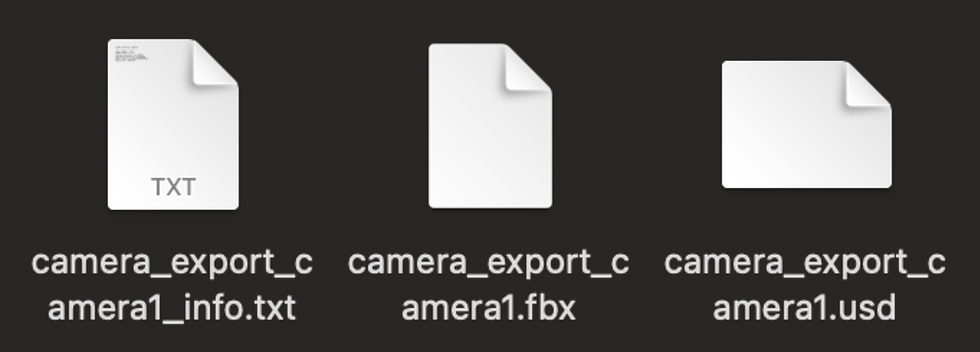
Upon export, the camera’s animation will be automatically baked, and it will be cleared of any parents as well. In the maya scene, the source camera will be renamed “original_(name of your camera)”, while a second camera will be made with the given size adjustments titled “scaled_(name of your camera)”.
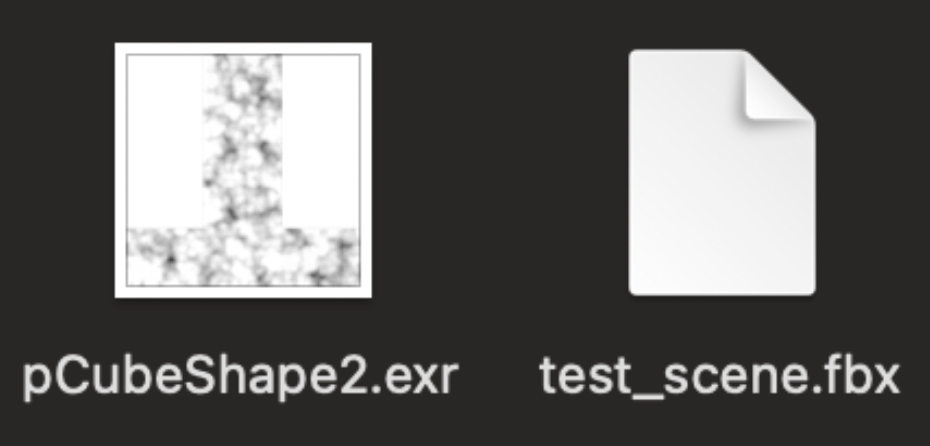
You may also export a test scene, which randomly scattered cubes in front of the camera at a distance relative to your settings. This will export out as an fbx, and be accompanied by a noise texture for optional further precision. This can be helpful in assuring the cameras line up correctly, without having to export the entire scene yet.
From there, you should be able to swiftly import a baked, scaled, and unparented camera to your Houdini scene, with its information organized neatly for your reference.


Comments